Is the PNG really transparent?
Yes. The transparent downloads have no filled background, so you can layer them over maps or images.
Transparent hex grid PNG
Download a clean transparent hex grid PNG or transparent hexagon grid for maps, Figma, Canva, Photoshop, or tabletop battlemap overlays.
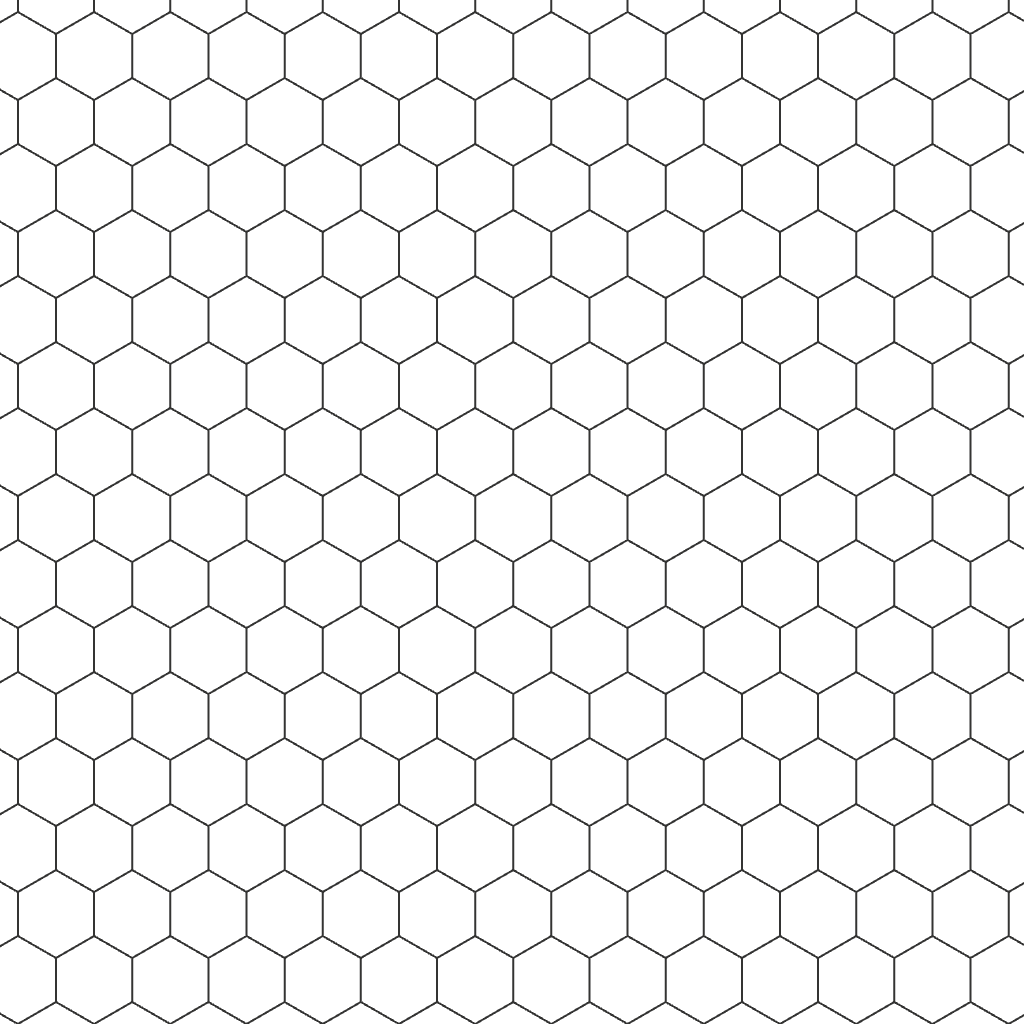
Best first download
Black pointy-top lines for quick square overlays.
For dark maps
White pointy-top lines for dark maps and night scenes.
HD battlemap
1920 x 1080 white hex lines on transparent background.
Black pointy-top lines for quick square overlays.
Download Transparent Hex Grid PNGWhite pointy-top lines for dark maps and night scenes.
Download Transparent Hex Grid PNG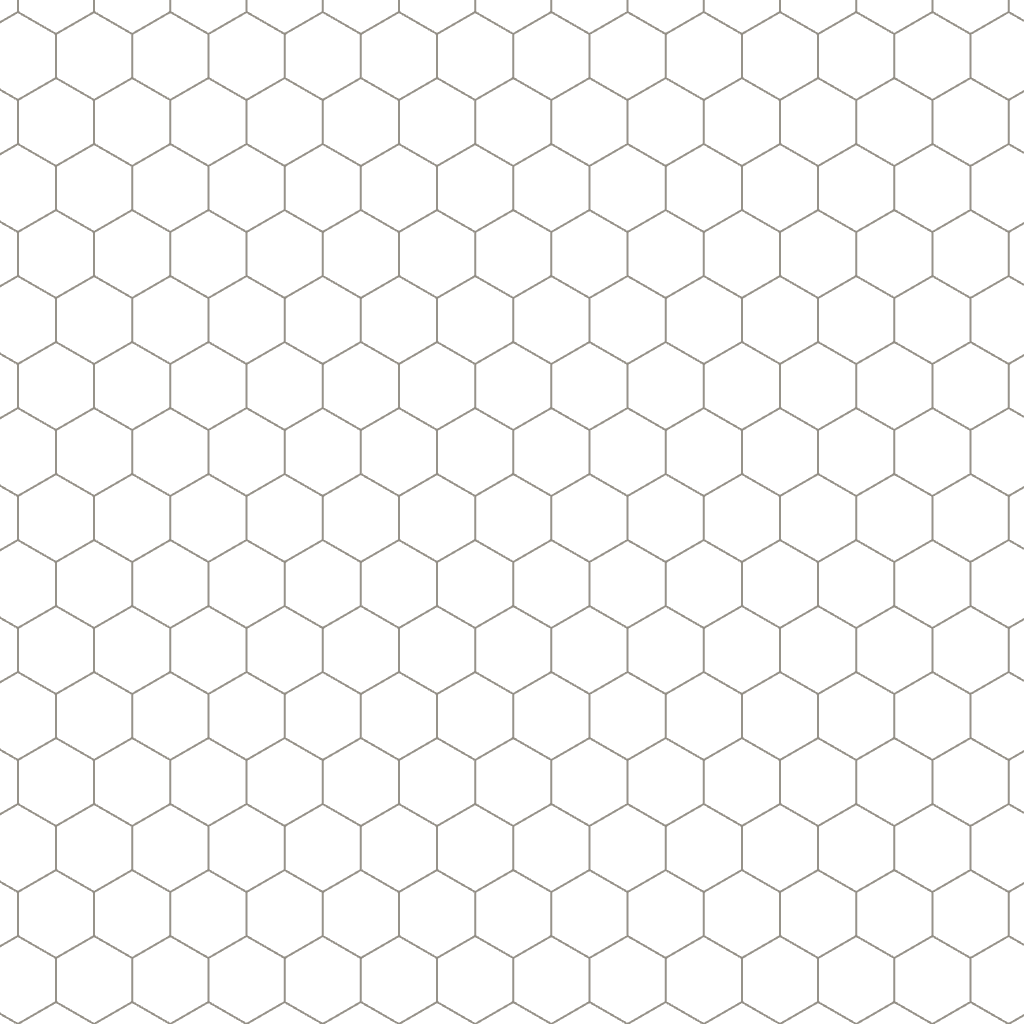
Soft low-contrast lines for design mockups.
Download Transparent Hex Grid PNG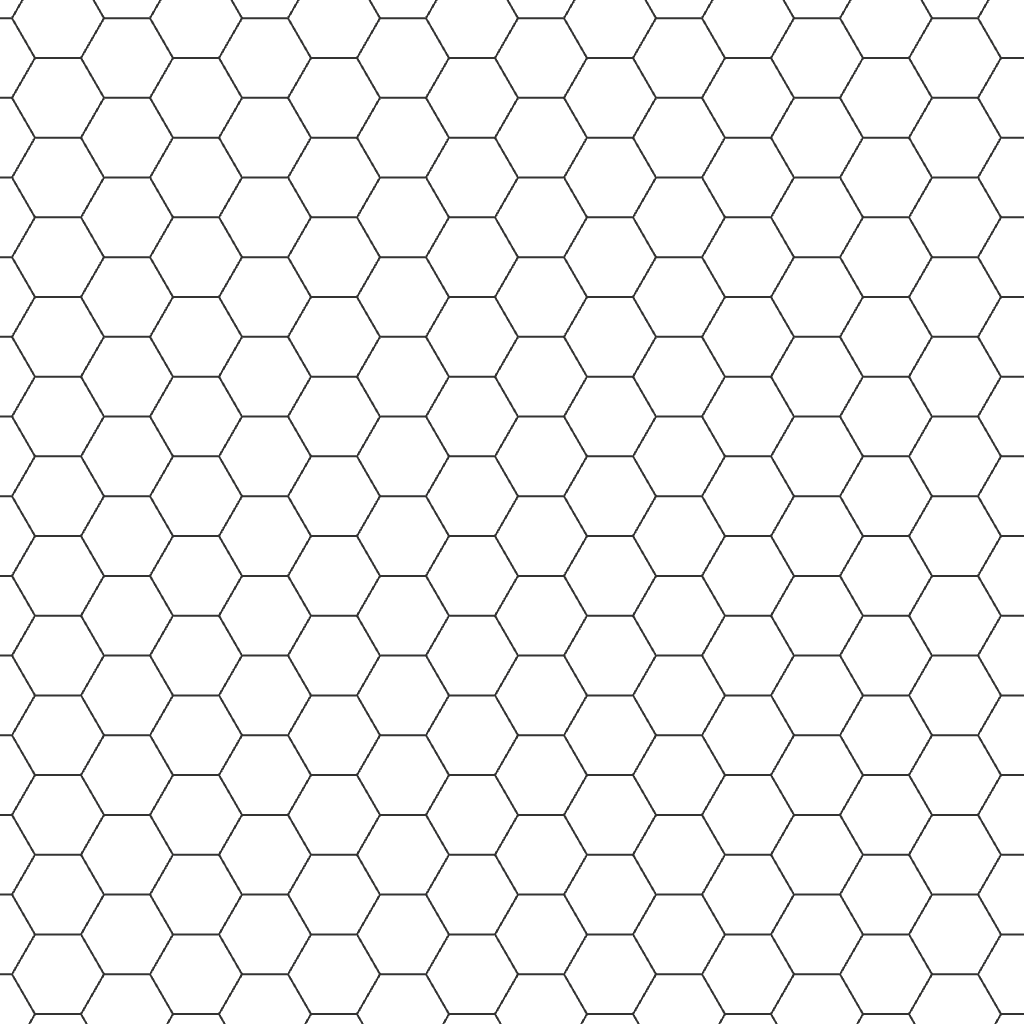
Flat-top transparent grid for horizontal movement maps.
Download Transparent Hex Grid PNG1920 x 1080 white hex lines on transparent background.
Download Transparent Hex Grid PNG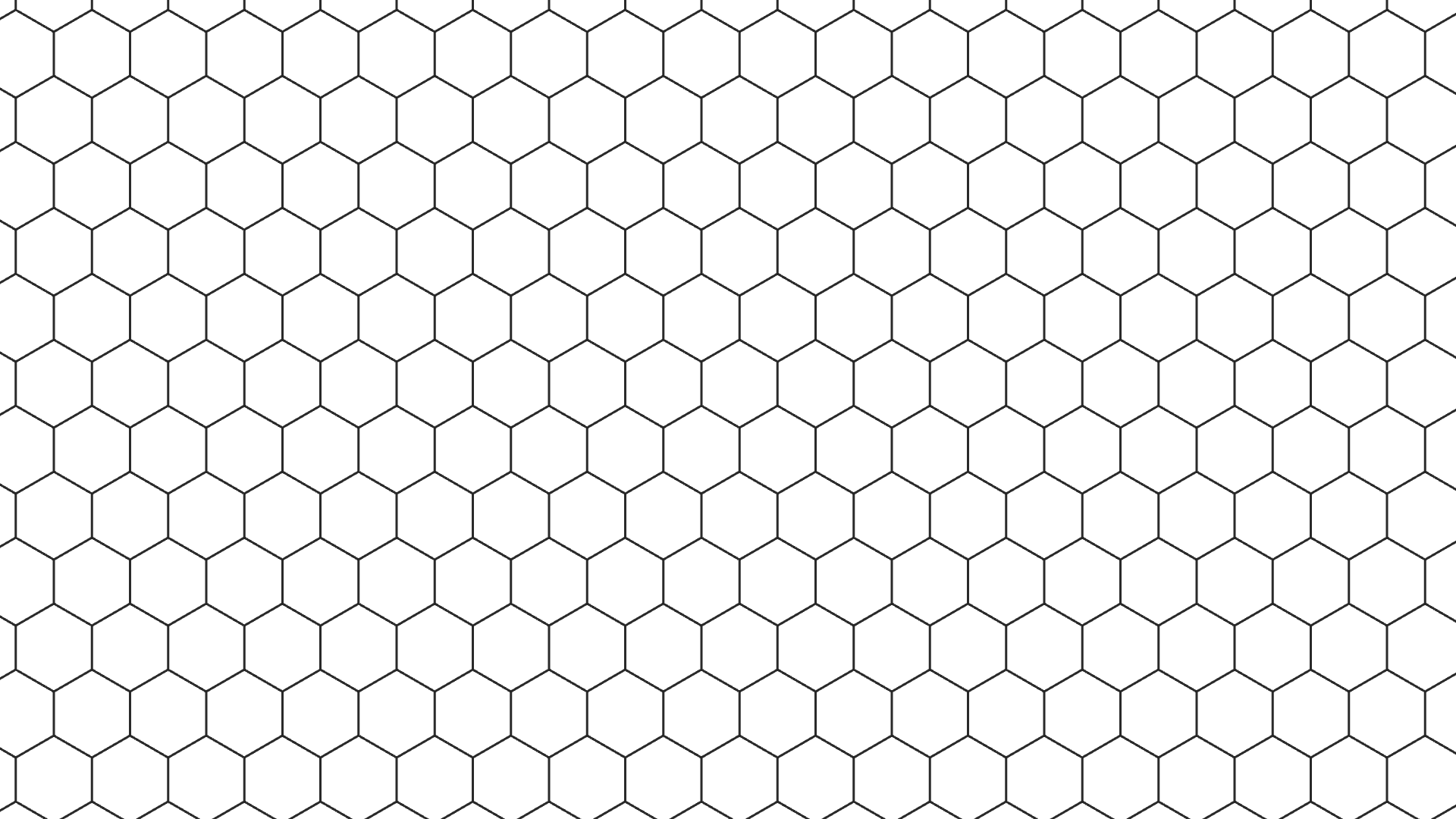
1920 x 1080 dark hex lines for light maps.
Download Transparent Hex Grid PNG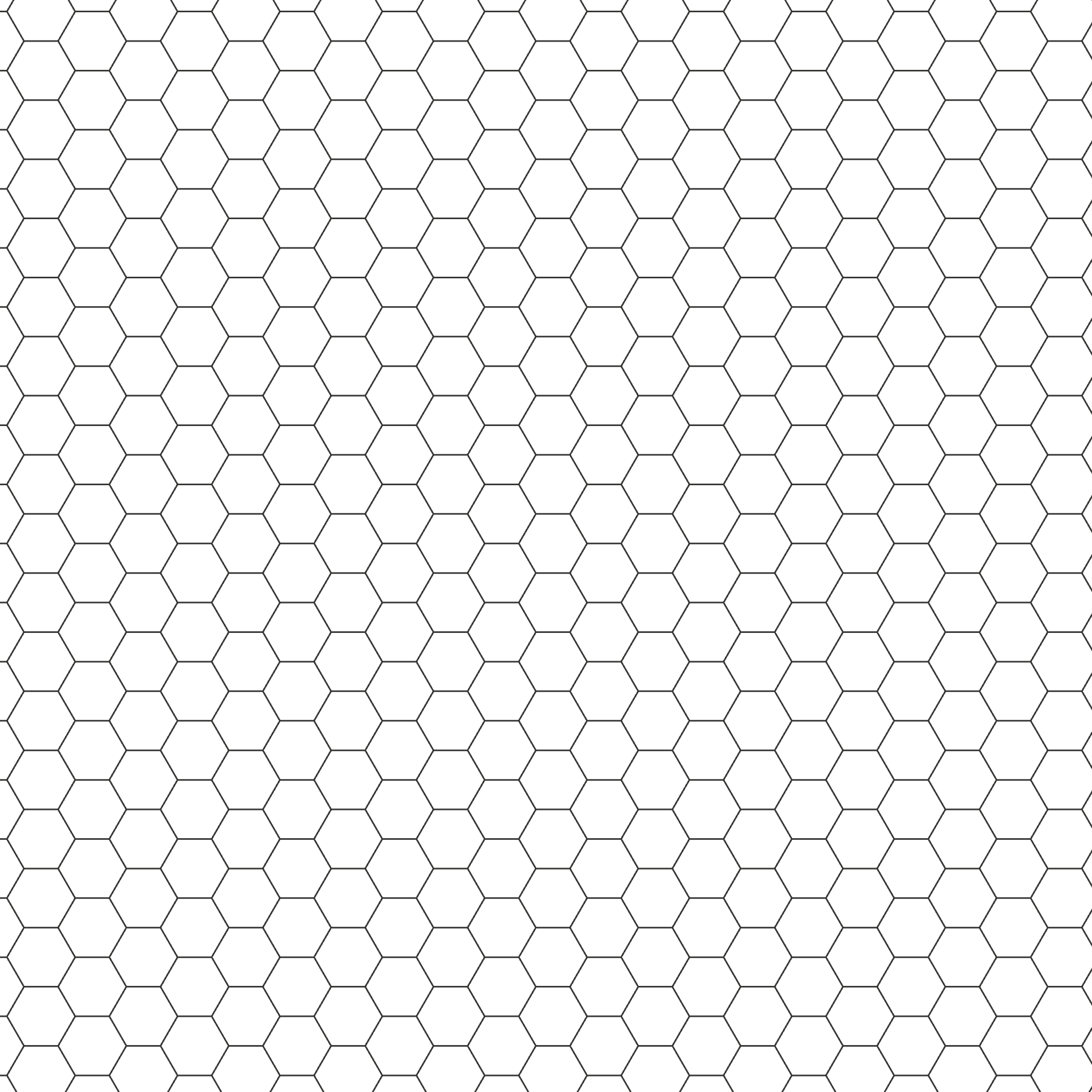
2048 x 2048 flat-top hex grid for high-resolution work.
Download Transparent Hex Grid PNG
2048 x 2048 flat-top white grid for dark square maps.
Download Transparent Hex Grid PNG
3840 x 2160 transparent overlay for high-resolution maps.
Download Transparent Hex Grid PNGOpen the editor only when the ready-made sizes do not fit your map.
Which PNG to use
Download a ready overlay when one of the common square or HD PNG sizes fits your map. Use the customizer when you need to match a specific map with different alignment, color, or spacing.
| PNG | Size | Best use |
|---|---|---|
| 1024 square | 1024 x 1024 px | General design overlays, Canva, Figma, and quick square image edits |
| HD wide | 1920 x 1080 px | Wide tabletop battlemaps, video-ready layouts, and screen backgrounds |
| Large square | 2048 x 2048 px | High-resolution square maps and larger design canvases |
| 4K wide | 3840 x 2160 px | High-resolution VTT maps, large displays, and detailed digital artwork |
| Flat-top | 1024 x 1024 px | Horizontal movement maps and board-game style layouts |
Overlay workflow
A transparent grid works best when the map, image, or design is already finished and you only need a reusable line layer. If the grid needs to follow a specific room size or battlemap scale, upload the map and align the grid before downloading.
Where transparent hex PNGs help
Download pages perform better when the content explains the exact file job. This page focuses on transparent overlays instead of mixing every hex-grid use case together.
Place the PNG over a battlemap in an image editor or VTT workflow when the map does not already include hexes.
Use the square PNG in Figma, Canva, Photoshop, or other tools when you need a quick visible hex layer.
Keep the transparent PNG separate so you can test line opacity or blend modes without changing the original image.
Overlay checklist
A transparent PNG is only useful if the line color, opacity, and cell size match the artwork behind it.
Related tools
Transparent PNG is one narrow job. These pages handle print and full customization without confusing this download page.
FAQ
Yes. The transparent downloads have no filled background, so you can layer them over maps or images.
For downloads, they usually mean the same overlay: repeated six-sided cells on a transparent background. This page focuses on transparent hex grid PNG files you can layer over other artwork.
Yes. Use the download cards for ready-made PNG overlays, or upload a map in the custom overlay tool when you need exact hex size, opacity, and X/Y offset.
Yes. Upload your map below, adjust hex size, opacity, and offset, then download either the merged map or transparent grid only.
Use PNG for quick overlays in image editors. Use SVG when you need crisp scalable lines.
Use 1024 x 1024 for square design work, 1920 x 1080 for HD battlemaps, 2048 x 2048 for larger square overlays, and 3840 x 2160 for 4K maps.
Yes. Use the custom overlay tool to change line color, line width, opacity, hex size, and alignment before exporting.